
39 2nd Street
Presque Isle, Maine
Telephone: (207) 764-2571
Toll Free: (866) 758-4480
Fax: (207) 768-5756
EST. 1908
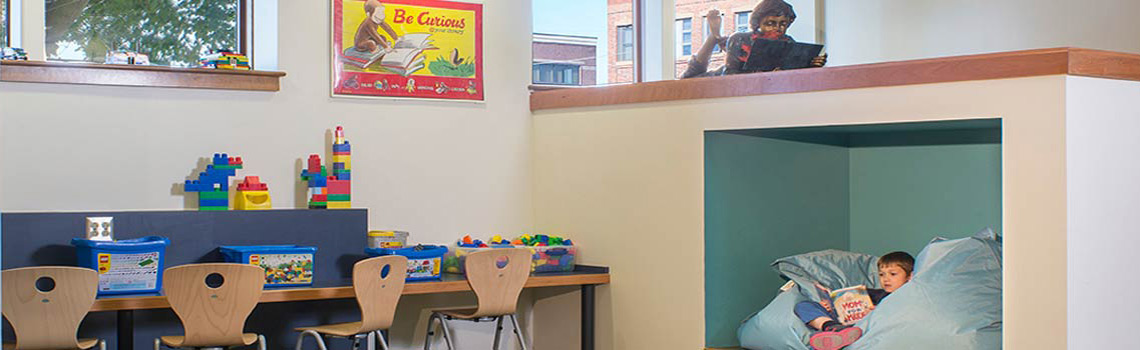
Reading Nook
Photo by Magnus Stark
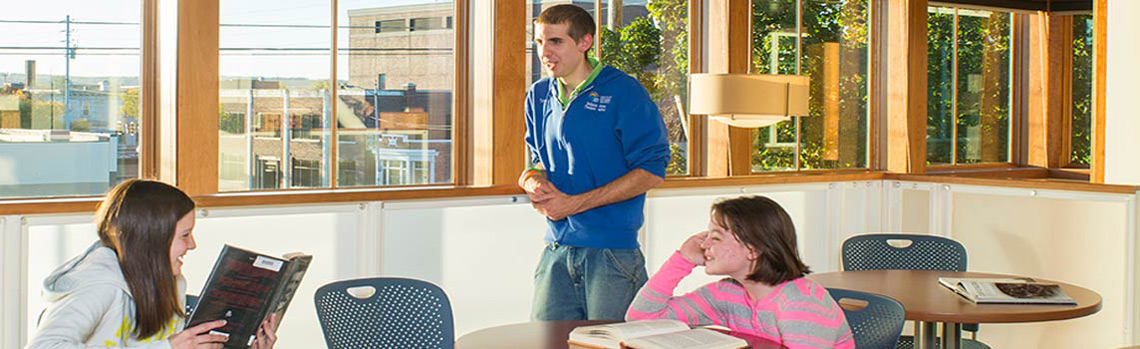
Cafe
Enjoy your snack in our cafe.

Storytime
A regular favorite for all ages

Get Your Library Card
At anytime, checking out materials is fast and easy.


Online Catalog
What's Coming! What's New! What's Hot!
FAQ's
Get your questions answered!
Maine Infonet
Maine Libraries. Maine Citizens. Connected.
Classical Tour
Delve into our classical collection
Maine Infonet
Download Library
Digital Maine Library
Maine's Virtual Library
Obituary Index
Digital Archives
of the Mark and Emily Turner Memorial Library


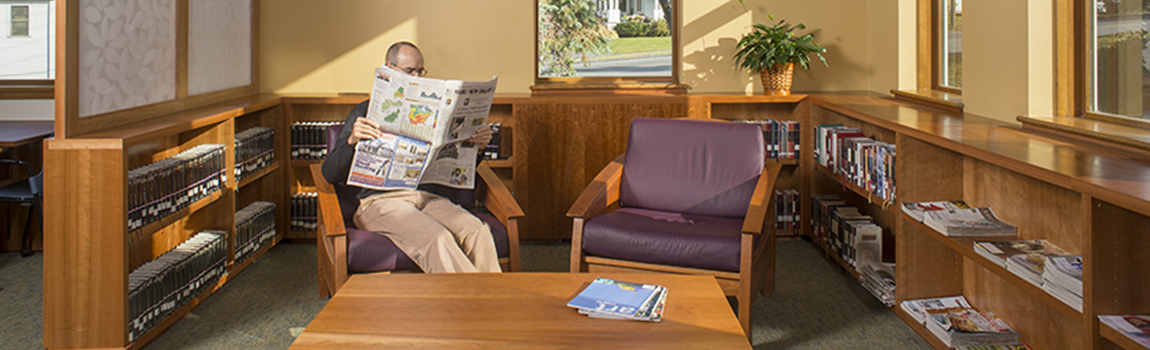
From period articles to newspaper, an enjoyable reading area to relax and catch up on latest news.
From period articles to newspaper, an enjoyable reading area to relax and catch up on latest news.
From period articles to newspaper, an enjoyable reading area to relax and catch up on latest news.


 From period articles to newspaper, an enjoyable reading area to relax and catch up on latest news.
What are your opening hours?
9am to 7pm, Monday through Thursday; Friday, 9am to 5:30pm; Saturday, 9am to 2pm
Library observes all major holidays which include: New Year's Day, Martin Luther King Day, Presidents Day, Memorial Day, July 4th, Labor Day, Veteran's Day, Thanksgiving (and the day after), and Christmas Day. The library is also closed for City Holidays (which vary).
Do you have public-access computers to use at the Library?
There are 21 public-access computers available for 60 minutes at a time and no library card required. Functionality of the computers is wide, depending upon what you need, but users can browse the internet, create documents, and print, among other activities.
Are Notary services available?
Notary services are currently available.
May I apply for a US Passport at your Library?
We are an approved Department of State Passport Acceptance Facility with an agent is available to assist you. It is best to call ahead and make an appointment, however, walk-ins are accepted as well.
May you bring your own computer to use and sign in?
Our wireless internet service is freely available for you to connect with your own devices.
What is the address of the Library?
We are located at 39 Second Street, Presque Isle, Maine 04769
May I book conference rooms at your library?
Conference rooms are available for small or large groups. Our largest room has a standing capacity of 82 persons, contains a kitchenette, tables, chairs, and a screen. You will need to bring your own audio/visual equipment. Conference Room Request Forms are available by request or on our website.
Have you a public telephone for use?
Our public telephone is located near the stairwell on the Main floor with the ability to make local calls.
Are there DVD movies that circulate?
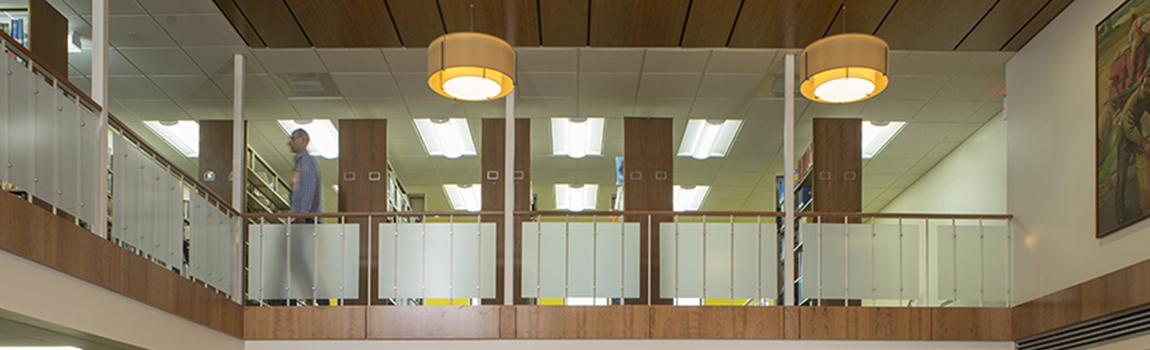
On the Mezzanine floor, we have a large selection of movies and music that circulate.
Is there teen lounge and study area in the Library?
Young adults, preteens, and teens are welcome and have their own space on the Main floor. Included in that space is a meeting room for teens that need to complete group work or need a quiet area to study.
Do you present Fine Art Exhibitions?
As part of the First Friday Art Walk, we offer several shows throughout the year. In addition to this, we offer a few outstanding juried exhibitions from regional artists using a variety of mediums located in our galleries throughout the library. To be considered for one of these shows, please see our Exhibition Procedures.
Aside from First Friday and special Exhibitions, what Gallery exhibits are permanently available to view?
There are three permanent exhibitions currently displayed. The first is Andrew Wyeth print collection, located in the Howard & Espa Michaud Reading Room on the Main floor. The second, is the Deborah Thompson Tolfson painting by Lucy Hayward Barker painted 1935, located near the Circulation Desk and three original works, "Potato Planting", "Potato Harvest", and "Potato House" by Richard V. Ellery, commissioned in 1946 by the Northern National Bank and later donated to the City of Presque Isle, are displayed on the Main floor.
May I schedule a guide to help me understand exhibits being offered at your cultural centre?
The library is fortunate to have the assistance of an Artist-in-residence available to provide guided tours for the current and permanent exhibitions. Please contact the library to request this service.
Can you apply to exhibit your own work in the Fine Art Galleries at the library?
You are encouraged to apply by submitting the Exhibition Proposal Form.
May I bring Food and Drink into the Library?
Our cafe, located on the Main floor, is designated for food and drink.
Is there a Genealogy Centre in your Library?
The reference section on the Mezzanine Floor houses our Genealogy materials. In addition to materials, we have trained staff and volunteers ready to assist you. For help with your genealogy search, call ahead and set up an appointment to insure we can give you our full attention.
Is your Library Handicapped accessible?
ADA requirements and ease of access goals were a significant focus during our renovations. The new library building is fully handicapped accessible: there are parking spaces designated for handicap parking and an elevator provides wheelchair access to the building. All public spaces of the library, including restrooms, are accessible to wheelchairs as well.
Do you have subscriptions to magazines and newspapers?
YES
Is there a fee to take out books?
If you are a resident of Presque Isle or pay taxes to the City of Presque Isle, you may have a library card at no charge. Also, if you are a student at the University of Maine at Presque Isle, the Northern Maine Community College, SAD#1, SAD#1 Employees Or City Of Presque Isle Employees, you may have a free library card. Residents of surrounding communities who wish to purchase a membership may do so at the following rates: Family, $55.00 per year; Individual, $46.00 per year. Should the fees cause hardships, there are options available for payments over time. Please see the Librarian to apply.
Is there a transgender bathroom?
Gender neutral bathrooms are located on the Main floor.
Have you a baby changing station?
The library is fully prepared for our youngest patrons and the family restroom with a baby changing station is located in the Children's library.
Children have to be accompanied by a adult until what age?
Our public library is a very busy place and your child's safety is extremely important to us. As such, please accompany your child under the age of 10 or provide suitable supervision during their time at the library.
Does your library accept donations?
The Mark & Emily Turner Memorial Library Charitable Trust is a non-profit 501(c)(3) corporation which is operated by an Advisory Library Board of Trustees appointed by the Presque Isle City Council. Although we are a department of the City of Presque Isle, the Trust operates independently from municipal governance. The Charitable Trust exists solely to enhance and expand services provided by the library and accepts donations to that end. Our Memorial Donation program, offers the opportunity to donate funds to purchase a book in someone's honor or memory.
Can I work at the library?
Applications for employment are handled solely by the Human Resources Department on the 3rd floor of City Hall, however, we have a thriving on-going volunteer program. Individuals may apply at the library to be part of this dynamic group of skilled volunteers.
Bring your website project to life by easily adding a selection of images to appear in a slideshow in the background of your template. Setup of the slideshow is all done within the templates parameters without the need of any module extension. This has allowed us to style the slideshow to form perfectly within the styling of your template. The slideshow is fully responsive to ensure your images are displayed perfectly across all screen sizes and devices.

Included with this the template is our J51 Carousel module. This easy to use, highly versatile and fully responsive module allows you to place any content within an attractive carousel, an excellent solution to showcase your work in a small space. It's many uses include displaying a portfolio of work right across to a simple testimonials module. The possibilities are endless!
The module includes an editor field for each column of your carousel so any content you can add to a standard article editor you can also add to your carousel. You can then set the number of columns you wish visible with each slide from one up to six. Other option fields include, navigation, pagination, transition style, transition delay and transition interval. There is also responsive options to set the number of columns per slide across various screen sizes.
A utility class is a class that defines a set of methods that perform common, often re-used functions. Your template includes a number of helpful utility classes to help style your content. In Joomla there is a number of different methods of adding a class name to an element..
Inline Styling
The most basic method is inline directly in to the HTML of your document. Note that this method is only used when your are viewing the HTML source of your document either via the CodeMirror editor or the source/HTML option available in most other editors. An example would look something like the following....
<h2 class="padding-bottom-40">
    A Sample Heading
</h2>
The above class name of padding-bottom-40 will add a padding (space) of 40px to the bottom of the text.
Module Class Suffix (Module)
This method is specific to modules. If you click in to the settings of any module and select the 'Advanced' tab you will notice a 'Module Class Suffix' field. Simply add the utility class to apply the CSS of this class to the enitre module. An popular example would be the utility class 'text-light' which will convert all the text within a module to white which you will find useful if you have a dark background image or color set for the module area background. Note you can add as many classes as you like by simply separating them with a space.

Link CSS Style (Menu Items)
This final method is specific to menu items. Clicking in to the settings of any menu item (Menus -> [YourMenu] -> [YourMenuItem]) and selecting the 'Link Type' you will notice a 'Link CSS Style' field. This will allow you to apply a class to that particular menu item.
Text/Icons Color Classes
| Class | CSS Property |
|---|---|
| text-light | All containing text/icons is light |
| text-dark | All containing text/icons is dark |
Padding & Margin Classes
| Class | CSS Property |
|---|---|
| padding-top-0 | padding-top: 0px; |
| padding-top-5 | padding-top: 5px; |
| padding-top-10 | padding-top: 10px; |
| padding-top-15 | padding-top: 15px; |
| padding-top-20 | padding-top: 20px; |
| padding-top-30 | padding-top: 30px; |
| padding-top-40 | padding-top: 40px; |
| padding-top-60 | padding-top: 60px; |
| padding-bottom-0 | padding-bottom: 0px; |
| padding-bottom-5 | padding-bottom: 5px; |
| padding-bottom-10 | padding-bottom: 10px; |
| padding-bottom-15 | padding-bottom: 15px; |
| padding-bottom-20 | padding-bottom: 20px; |
| padding-bottom-30 | padding-bottom: 30px; |
| padding-bottom-40 | padding-bottom: 40px; |
| padding-bottom-60 | padding-bottom: 60px; |
| padding-horiz-10 | padding: 0 10px; |
| padding-horiz-20 | padding: 0 20px; |
| padding-horiz-30 | padding: 0 30px; |
| padding-horiz-40 | padding: 0 40px; |
| padding-horiz-60 | padding: 0 60px; |
| padding-vert-10 | padding: 10px 0; |
| padding-vert-20 | padding: 20px 0; |
| padding-vert-30 | padding: 30px 0; |
| padding-vert-40 | padding: 40px 0; |
| padding-vert-60 | padding: 60px 0; |
| Class | CSS Property |
|---|---|
| margin-top-0 | margin-top: 0; |
| margin-top-5 | margin-top: 5; |
| margin-top-10 | margin-top: 10; |
| margin-top-15 | margin-top: 15; |
| margin-top-20 | margin-top: 20; |
| margin-top-30 | margin-top: 30; |
| margin-top-40 | margin-top: 40; |
| margin-top-60 | margin-top: 60; |
| margin-bottom-0 | margin-bottom: 0; |
| margin-bottom-5 | margin-bottom: 5; |
| margin-bottom-10 | margin-bottom: 10; |
| margin-bottom-15 | margin-bottom: 15; |
| margin-bottom-20 | margin-bottom: 20; |
| margin-bottom-30 | margin-bottom: 30; |
| margin-bottom-40 | margin-bottom: 40; |
| margin-bottom-60 | margin-bottom: 60; |
| margin-horiz-10 | margin: 0 10px; |
| margin-horiz-20 | margin: 0 20px; |
| margin-horiz-30 | margin: 0 30px; |
| margin-horiz-40 | margin: 0 40px; |
| margin-horiz-60 | margin: 0 60px; |
| margin-vert-10 | margin: 10px 0; |
| margin-vert-20 | margin: 20px 0; |
| margin-vert-30 | margin: 30px 0; |
| margin-vert-40 | margin: 40px 0; |
| margin-vert-60 | margin: 60px 0; |
Background Color Classes
| Class | CSS Property | Color |
|---|---|---|
| background-white | color: #FFFFFF; | |
| background-black | color: #000000; | |
| background-gray | color: #888888; |
| Class | CSS Property | Color |
|---|---|---|
| background-gray-dark | color: #333333; | |
| background-gray-light | color: #cccccc; | |
| background-gray-lighter | color: #ebebeb; |
It is worth noting that we have not used !important with any of these classes, therefore if you apply a utility class to an element that has !important CSS styling applied to it then this styling will not be overridden.
If you like this feature please let us know in our forums and we will extend on this in future template releases!
Our ThumbsGallery module extension allows you to easily create a simple and stylish thumbs gallery module in to any module position on your site. A thumbs gallery is an excellent way to showcase your images in an elegant and space efficient manner.
To set up your Thumbs Gallery module simply point the module to the image folder of your choice and the module will do the rest. The module will automatically create thumbs for each of your images, linking them to the original image in a stylish, easy to navigate lightbox.
Included with this template is the excellent Grid Gallery module extension. This stylish portfolio extension is an ideal solution to showcase site content in to attractive image boxes which can then be linked to further articles within your site. This extension is styled specifically for this template so it will blend seamlessly with the rest of the styling on your page.
Easily add title and description text for each image using the corresponding fields. Responsive options allow you to easily set the image box width depending on the device it is been viewed on. Multiple color choosers allow you to style the different elements of boxes to your own taste. And finally an 'On Scroll Animation' field allows you to easily add any of the animate classes included with the template to animate the image box as it is scrolled in to view within the browser window.
Font Awesome is a pictographic language of web-related actions which delivers over 300 icons. The Font Awesome webfont and CSS files are licensed under CC BY 3.0 and you can find the full examples of usage at Font Awesome - http://fortawesome.github.com/Font-Awesome
Add class fa-CLASS_NAME to any element, best used with a <span>.
Can also be added to any menu item using the Link CSS Style field in your menu item settings or to a module title using the Header Class field in your module settings.
New Icons in Font Awesome4.2
Web Application Icons
Form Control Icons
Currency Icons
Text Editor Icons
Directional Icons
Video Player Icons
Brand Icons
Medical Icons
We have included an option to easily add animations to almost any element of your site content. These animations are triggered once elements enter the viewport of your browser as you scroll down the page adding life and energy to your site content. Great for adding focus to particular elements of your content which you wish to bring to the attention of your visitors.
Doing so is as simple as adding class names to the element you wish to animate via either inline through your editor or via your Module Class Suffix (Modules) or Link CSS Style (Menu Items) fields.